
Mobile Crane Hire Invoicing: Check An Uncertain Xero Export Before Retrying
Find the existing invoice, separate an uncertain export from a missing PDF and leave the next accounts colleague a clear saved result.

Identify Which Result Is Uncertain
For mobile crane hire Xero invoicing, check the existing invoice before repeating an export whose result is unclear. Creating the UpRate record, creating an accounting invoice in Xero, attaching its PDF and sending the customer package are separate stages. A missing document or an interrupted screen does not tell you which stage succeeded.
Write down what you can actually confirm: the record you opened, the message shown and the last saved result. Keep one person responsible for checking the uncertain stage. Two colleagues trying different recovery actions on the same job can make the handover harder to resolve.
Find The Original UpRate Invoice First
Check the selected company, customer, contract and invoice week. In UpRate's invoice selection panel, inspect the existing records for that contract and week before choosing Raise New Invoice. Use a new record only when a separate invoice is intended. After an uncertain creation result, check those records rather than assuming that nothing was saved.
For older work, All Invoices searches across invoice weeks. Its range is based on the invoice week, which can differ from the issue date. Clear restrictive filters or widen the range when appropriate. A load error needs its retry action; it is not evidence of an empty history.
Check Xero Before Repeating An Uncertain Submission
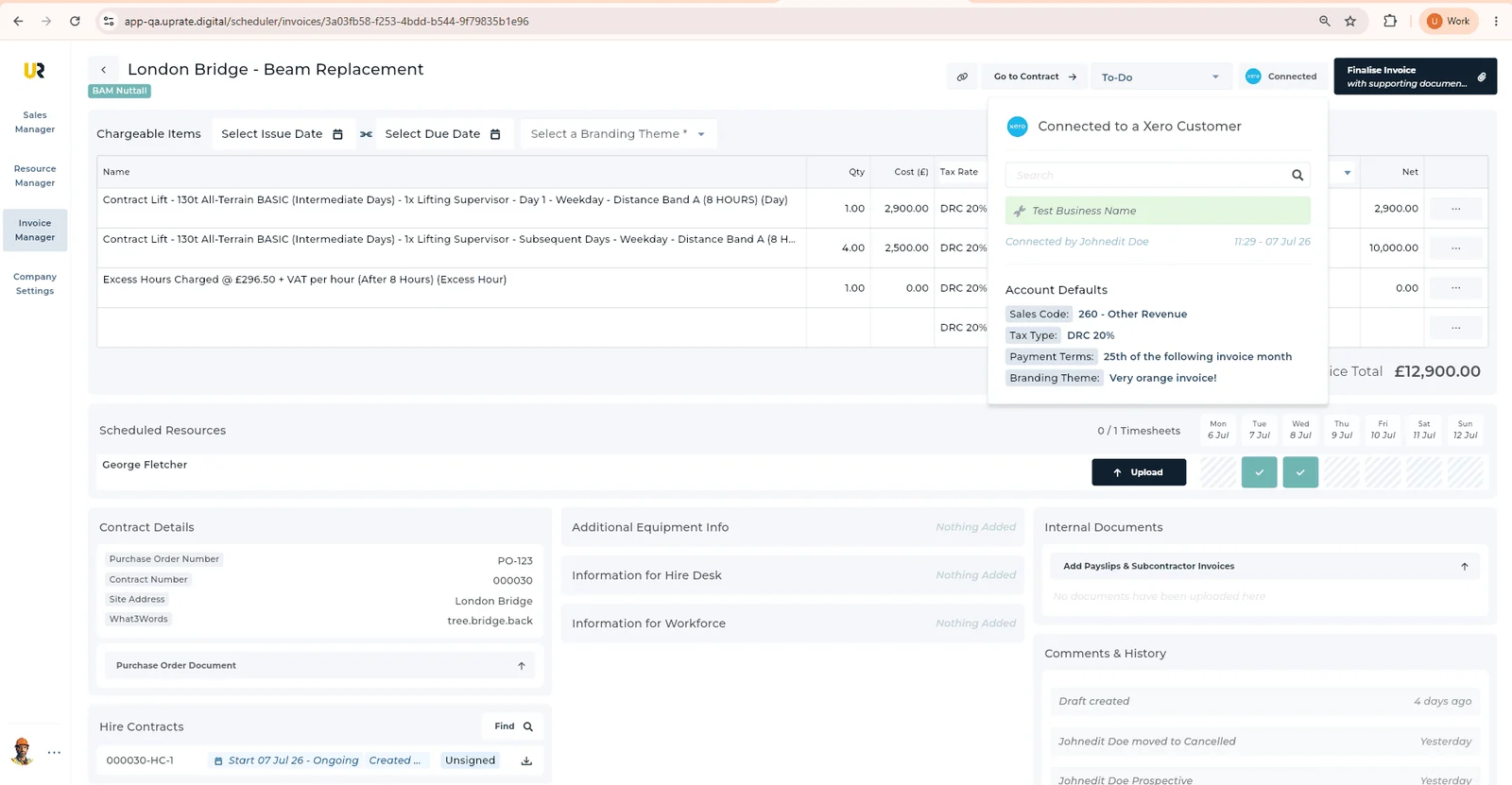
Where your company's Xero connection is available, the UpRate guide requires checking the customer link, charges, tax, sales codes, tracking, dates and branding before submission. If the submission result is uncertain, check Xero for that invoice before retrying. Do not treat a closed panel as a confirmation of either success or failure.
Compare enough information to identify the actual work, including the customer, invoice reference, relevant dates and amount. This is a suggested office check, not a promise that software automatically detects every duplicate. If the result remains unclear, retain the existing records and ask your accounts lead or support to help establish what happened before creating more accounting work.
Recover The PDF For The Invoice That Already Exists
UpRate's documented warning Invoice created in Xero, but its PDF is not attached identifies a different recovery task from an uncertain export. Keep the existing Xero invoice. Where your record permissions allow it, use Download PDF from Xero to retry the attachment for that invoice, then wait for the saved PDF and open it to check its contents. Use Reload invoice documents if the list needs refreshing.
If PDF recovery fails, resolve the displayed problem and use the same recovery action. A new export is not a substitute for retrieving the existing document. Xero's own reference documents retrieving a PDF for an identified invoice separately from invoice creation; the UpRate guide explains the controls available in this workflow. Connection setup and successful live delivery still depend on your company's environment.
Work Through One Interrupted Handover
Illustrative example: a crane and operator have completed a week's work. Accounts submits the reviewed invoice, then sees that its PDF is not attached. The next colleague finds the existing UpRate invoice and checks the corresponding Xero record. Once the saved state is confirmed, they follow the PDF recovery route instead of raising another invoice for the same work.
Before continuing, they open the recovered document and compare it with the intended invoice. They then review the customer package's supporting-file choices and recipients through the ordinary sending procedure. Recovering a PDF does not resolve those choices, send the package or prove that a customer has received or paid it.
Leave A Saved Next Action For Accounts
A useful handover says which stage is confirmed and what still needs doing. Use an internal invoice note for the team's next action and check that it saved. UpRate's internal notes are excluded from customer invoices, emails and documents; they do not replace the customer-facing paperwork.
- Name the existing UpRate invoice and the accounting record checked, rather than starting another record to investigate.
- Record the visible warning and whether invoice creation, PDF attachment or customer sending remains unresolved.
- Give the next action an owner and check the saved result before handing it over.
- Review the actual document, supporting-file choices and recipients before the ordinary send confirmation.
Keep The Customer And Invoice Handover Connected
Sales Manager CRM is free for one user. Invoice Manager is an optional paid module; check your company's enabled features and Xero connection. Larger teams are paid. No credit card is needed to create your account.
Sign up for FREE Compare modules