
New in UpRate: enquiries, follow-ups and Contract lift preparation
A complete walkthrough of activity, sales profiles, enquiries, optional Quote dates, document controls and invoice improvements, with screenshots and task guides.
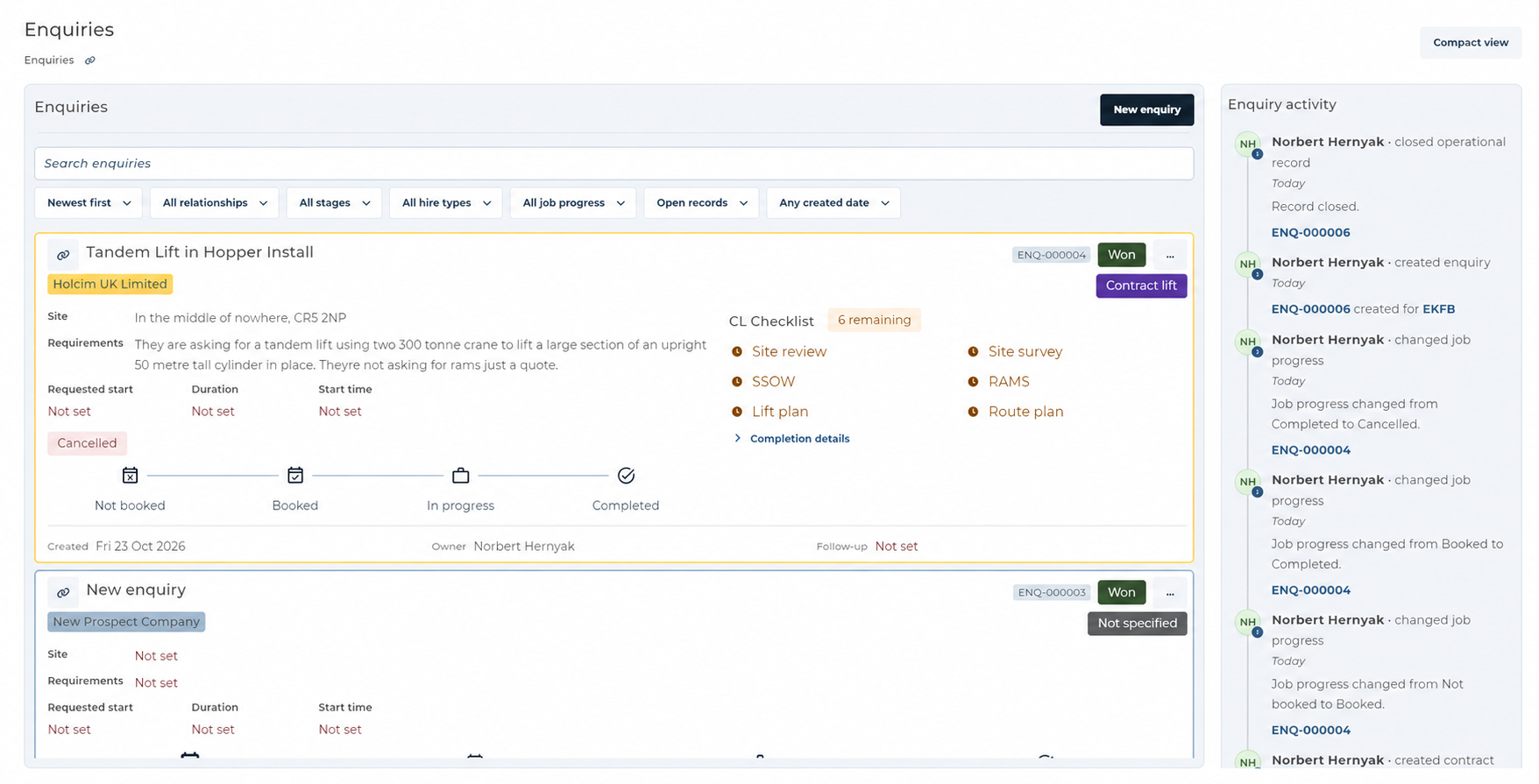
Find the next piece of work
The new Enquiries workspace gives proposed work its own record before you are ready to create a contract. Keep the requested work, site, customer or prospect, contacts and next action together. A Quote can start from the enquiry, so you can discuss the price while the hire dates are still being agreed.
Open Sales Manager, then Enquiries. These entries require the sales pipeline to be enabled for your company as well as Sales Manager access. If they are absent, check your selected company and availability with your company manager. Existing customers, contracts, scheduling and invoicing retain their own entry points.
Activity belongs with the record
Activity is new in this release: the customer list has Company activity, customer and prospect records have Sales activity, the Enquiries list has Enquiry activity, and contracts have Contract activity. These sections sit alongside or below the workspace. They are not separate Activity tabs inside each Quote or Hire Contract.
Open the intended record, select Add activity and choose Note or Call. Enter the details and select Save note or Save call. Logging a call records an internal conversation; it does not place a phone call or send a message. Use View all, then Load earlier activity or Newer activity to move through history ten entries at a time.
Document and record references in activity open the relevant item. Contract history remains scoped to the contract and its explicit enquiry link event rather than repeating all prospect history. Ordinary customer and contract activity needs Sales Manager access, but does not require the enquiry pipeline.
Maintain the company sales profile and contacts
Customer detail now separates Contracts from Sales information where that feature is enabled. The sales profile holds the main address, general phone and email, website and sales notes. Saved sales contacts can be added, edited, deleted where permitted, and selected as the main contact. Accounting contacts remain separate.
Open Sales information, expand Sales contacts and select Add contact. Enter the person’s details and select Save. Use the saved contact’s options for Edit, Delete or Use as main contact; deletion requires confirmation. Check the saved result, and use Retry refresh if the change succeeded but the list did not reload.
For proposed business, New prospect is available in the New enquiry company selector. Saving the prospect returns to that selector; check Selected company and choose Use selected company before entering the enquiry.
Search and switch to compact view
The list can answer different questions without changing the underlying records. Search by enquiry title, reference, customer or site, then combine the relationship, sales stage, hire type and job progress filters. Choose Closed records or All records when looking for an enquiry that has been closed.
Compact view reduces the space used by each card while keeping the identity, customer, stage, hire type, owner and follow-up visible. Detailed view restores the fuller facts and preparation information. Enquiries and Needs attention remember their choices independently for the current application session; this is not a permanent account setting.
- Open Sales Manager → Enquiries and type a term in Search enquiries.
- Choose the required filters and sort order. Clear the search and restore unrestricted filters if a record is missing.
- Select Compact view at the top of the page. Select Detailed view to return without resetting your search or filters.
Give each enquiry a next action
Select New enquiry, use Search in the company-selection panel and select the intended customer or prospect. Check Selected company, then select Use selected company to open the enquiry form and enter a Title. If you add a New prospect first, save it and then confirm Use selected company in the selection panel. Add Requirements and Site address when known. In Requested hire dates and time, set the requested start before choosing a period or duration. Leave unknown dates unset rather than entering a placeholder to unlock the controls.
In Follow-up, set the next date, optional time and Follow-up owner. Check the save indicator before leaving. When the follow-up has been done, use Complete follow-up and review its confirmation. Clear follow-up removes the plan; it is not the same action as recording completion.
Sales stage describes the sales position. Job progress describes the work, and closing controls whether the enquiry accepts ordinary edits. Keep these choices separate: marking work Booked does not allocate a machine or worker in the Scheduler.
Review My work and Team work
Open Sales Manager → Needs attention and choose My work or Team work. The page groups follow-ups, missing next actions and Contract lift checklist work; Team work also includes Hire Contracts needing attention where available. Read the reason on the card, then open its enquiry, document or contract to make the change.
A warning is a prompt to inspect the record. It does not prove that a customer has read a document, that an email arrived or that a resource has been booked. Likewise, a section that failed to load is not an empty work queue: use Retry attention and check the refreshed result.
Activity provides a route back to the relevant record. Use View all to inspect history, then Load earlier activity for older entries and Newer activity to return. Contract activity remains distinct from the full enquiry or prospect history.
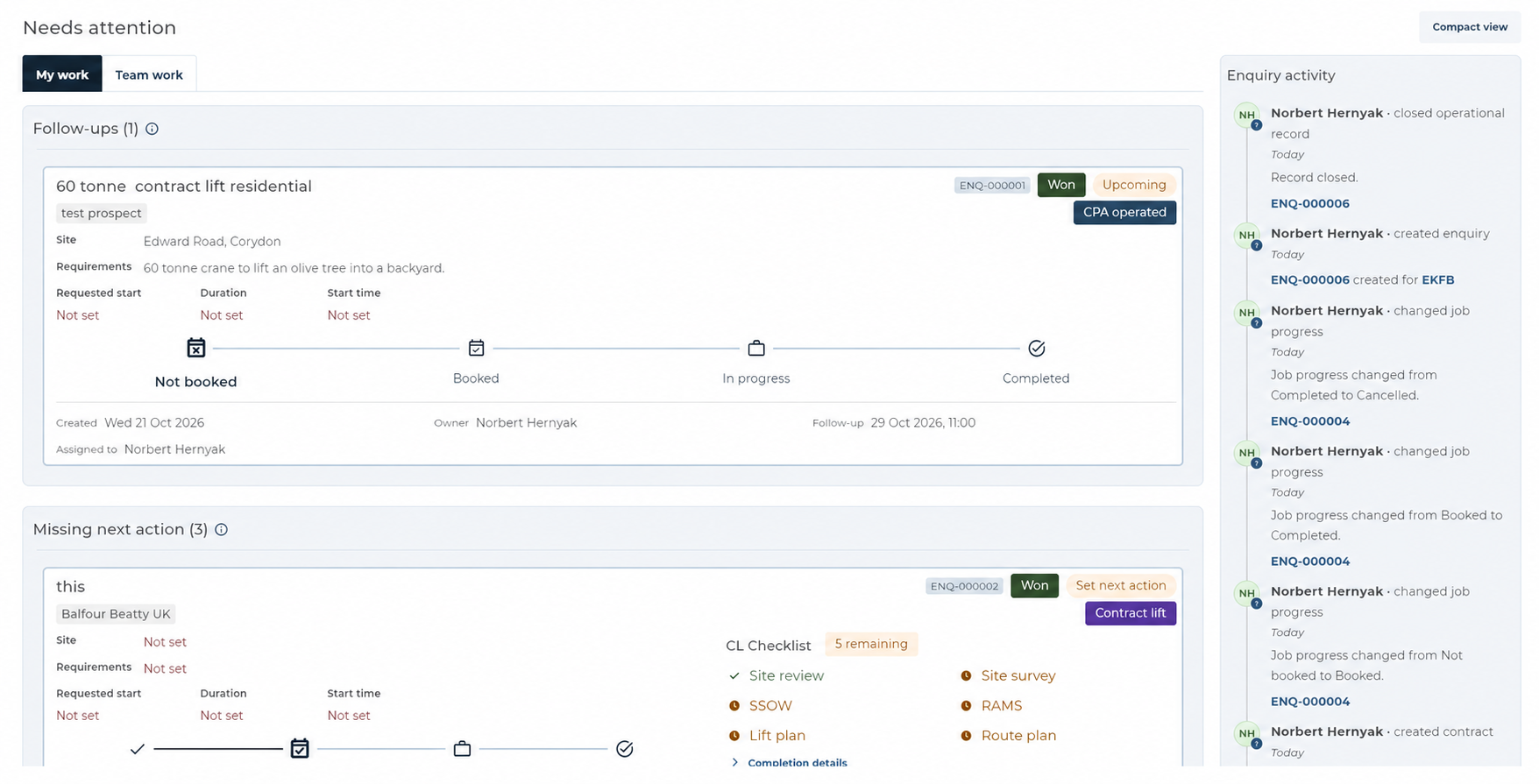
Prepare a Contract lift
On a saved enquiry, set Operations → Hire type to Contract lift. The Contract lift checklist contains Site review, Site survey, SSOW, RAMS, Lift plan and Route plan. Each row has Status, Date completed and Completed by.
Choose In progress, Completed, Sent or Not required for the task, enter the relevant date and person, then wait for saving to finish. Date and person remain editable when the status changes. Reset clears the selected row after confirmation. Switching to another hire type hides the checklist without deleting the saved preparation work.
Operations documents is separate from the checklist. Use Upload document to choose one or more PDF, JPEG, PNG, DOCX or XLSX files up to 20 MiB. Each saved file starts as General; choose its type beside the filename. Open the saved entry to check its contents. Uploading does not send the file or automatically mark preparation complete.
Move from an enquiry to a contract
For an open enquiry without a linked contract, select Documents → New quote. Prepare the Quote, wait for saving, then inspect Preview before sharing it. In Addressed to, search the saved-contact chooser, check the editable recipient fields or use Clear to remove the document recipient. The email sending list is separate and must also be checked.
When the customer is ready to proceed, use Create contract and check the named customer in the confirmation. Once linked, Open contract takes you to the resulting record; New quote is no longer offered on that enquiry. If an action reports an uncertain result, use its Retry contract or Retry document action before creating anything else.
Operational editing stays on the enquiry. The contract retains its ordinary Hire Desk information, PO files and documents. Creating a contract does not allocate resources: review the details, then book the required plant or people through Resource Manager.
Quote before the dates are agreed
A Quote can now be saved and shared with its start and duration left To be confirmed. This is a new capability, not part of the earlier quote-builder release. In Start & Duration, leave unknown values unset. When the start is known, choose Start date, then Period and the relevant end date or duration and unit.
Use Clear start & duration to remove the Quote schedule and its start time. Wait for saving and inspect Preview before sharing. Clearing Quote dates does not cancel Scheduler bookings or clear the enquiry’s requested dates. Do not enter placeholder dates merely to enable the period selector.
Check contacts, totals and document actions
In Addressed to, Choose contact searches names, email addresses, phone numbers and roles. Editing the fields while a saved contact is selected also updates that saved source. Remove the selection before entering document-only details, or use Clear and enter the fields without selecting a saved contact. The printed For the attention of and Prepared by rows show the available name, email and phone.
Include subtotal and Include total now work on editable Quotes, Hire Contracts and Pro Forma. Turning the total off also hides the subtotal; it does not change line-item amounts. Check Preview before sharing, including on a new version or duplicate that retains the choice.
The inline Template selector sits beside the chargeable-items heading, with None for the ordinary layout. Edit sales profile and, where applicable, Edit contract open the existing record panels from the document header. Send comes first in document menus; eligible new-version/duplicate actions and terms controls remain easy to reach.
Sending lists show names and role information and support editing or confirmed removal. Finish or cancel an open recipient form before sending. A successful Quote signature now automatically records Accepted; manual outcomes were already available. Acceptance does not book resources or record payment. Document invitation and signed-email links now use the configured application address.
Invoice recipients and everyday refinements
Invoice recipient names are now retained through delivery. Linked Xero customers provide their contact choices for explicit selection, including people who are not marked for automatic email inclusion. Open Finalise Invoice → Send To Recipients, check each intended name and email in the recipient list, then follow Review & Send and its confirmation. A contact suggestion alone is not a recipient. An unfinished recipient draft prevents sending. If This email is already a recipient appears, edit the existing recipient instead of adding it again.
Initial loading also appears within the relevant page sections, keeping their headings and context visible. Shared section layouts, calendar controls and document actions are more consistent. Wait for the relevant data to load before acting, and use the displayed retry control if a section fails. Schedule and timesheet sections offer Retry loading schedule and Retry loading timesheets after read failures. Enquiry scrolling controls, contract-card layouts and narrow header actions also retain clearer context.
Quotes and Pro Forma remain BETA and need company enablement and Sales Manager access. Invoice Manager access is required for invoice actions; these changes do not alter module permissions.
Use the detailed guides
The knowledge base now includes exact steps for finding and creating enquiries, completing follow-ups, maintaining the checklist, classifying files and working through Needs attention. The Quote, contract paperwork and getting-started guides link to the same procedures.
Close record is available when an enquiry should stop accepting ordinary changes. To edit it again, find it using Closed records or All records and select Reopen record. Closure does not delete the record or cancel a Scheduler booking.
The screenshots show the Enquiries and Needs attention pages supplied for this walkthrough. Use the controls and task guides to work with your own company records.
What was already available
The quote builder, company media library, Price List photographs and descriptions, Price List copy/import, account contact phone and personal appearance were already available before this release. This update builds on them rather than launching them again.
Activity histories, the enquiry and sales-profile workspaces, and Quotes with unconfirmed dates are new since the previous production release. The guides now cover those capabilities alongside the operational checklist, document controls and invoice improvements described here.
Bring your next hire together.
Start with customers and hire contracts. Add scheduling and invoicing when you need them.
Get Started for FREE Compare packages