
Mobile Crane Hire Calendars: Follow-Ups, Bookings And Shared Events
Keep customer reminders, crane allocations and external calendar events clear, especially when the same job appears in more than one diary.

Decide What Each Date Means
When choosing mobile crane hire calendar software, separate the date someone must contact a customer from the date a crane and operator are booked. Keep external appointments identifiable too. The same job can appear in all three places, but each entry answers a different question and needs its own checks when plans change.
A hire desk needs to know what is due today, who will do it and what capacity has actually been allocated. A calendar full of coloured entries can help with those questions only if the team understands what each entry represents. Agree where a reminder is maintained, where a booking is confirmed and where an external appointment must be edited.
Walk Through One Job Across Both Diaries
Illustrative example: a customer asks for a crane next Wednesday morning. The estimator agrees to call on Monday at 11am once more information is available. Monday's entry is a follow-up for the estimator. Wednesday is the proposed hire date. A resource booking still needs to be created and checked through your normal allocation process.
If the customer moves the work to Thursday, review the proposed dates, any existing crane and operator assignments, and the next contact separately. Moving a reminder to Thursday would only change when someone follows up. Record who owns each change so a colleague covering the desk can see which work is still outstanding.
Use Sales Calendar To Find The Next Action
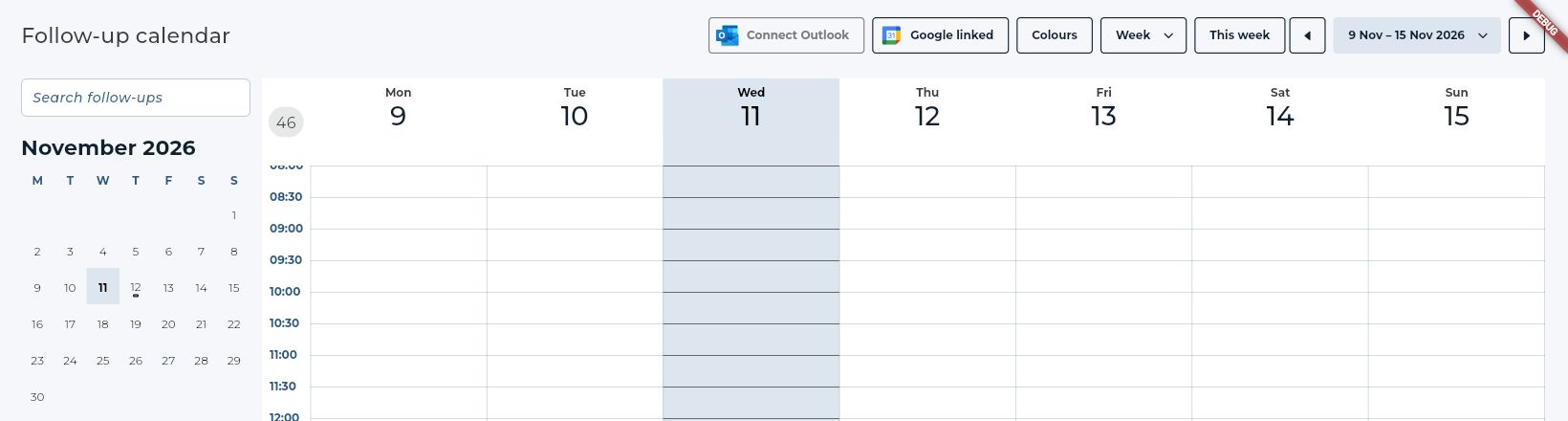
UpRate's Sales Calendar shows customer and enquiry follow-ups for the selected company. It does not allocate resources. Calendar access depends on company access, and enquiries also depend on the company's sales pipeline. Check the intended company before reviewing the team's work.
Choose a useful period and view, then check the selected team members. Include Unassigned when looking for reminders without an owner. Open the follow-up to confirm its customer or enquiry, due date and owner. Complete records what happened; Delay changes the due date, time or owner. Review and save the result, then wait for the calendar to refresh.
An empty view needs a little investigation. You may be looking at the wrong week, have excluded the responsible person, or have a loading error. Check those conditions before adding another reminder. An apparent gap is not proof that the original work was never recorded.
Check The Scope Of A Calendar Connection
The UpRate integration guide describes the current release candidate; production availability and Google provider setup have not been verified for every company. Check the deployed app and your company's availability before relying on a connection. The documented model allows one active provider per user and selected company: Outlook or Google Calendar.
For an eligible connection, assigned follow-up dates and times sync both ways with a dedicated UpRate calendar in the provider. Other provider calendars selected for display in UpRate are read only. Keep that distinction clear when someone asks which screen to edit. A displayed external event does not become a crane allocation.
Before using the integration for the day's work, confirm the account, company, connection status and connection time zone. Initial synchronisation can take time. Use the guide's status and recovery controls when something has not loaded or synced; a sign-in window alone does not confirm that linking succeeded.
Check Sharing Permissions Before Expecting Full Details
Provider permissions can explain why two colleagues see different information. Google's guidance distinguishes free/busy access from access to event details. Microsoft's Outlook guidance similarly distinguishes availability-only views from fuller details. Work-account administrators can restrict sharing. Check the relevant provider guidance and your company's policy rather than making a calendar public to resolve a visibility problem.
These provider permissions do not change UpRate's documented read-only treatment of displayed external calendars. Edit an external event in its provider. If a customer follow-up needs completing or rescheduling, use the UpRate workflow; deleting its provider calendar entry does not delete the CRM reminder.
Use A Short Morning Cross-Check
Try this office checklist with one upcoming job before applying it across the diary. It is a suggested working practice, not an automated UpRate validation or a technical approval for the lift.
- Confirm the selected company, date range and people shown in the sales view.
- Review today's follow-ups, including unassigned work, and give each outstanding action an owner.
- Check the actual crane and operator allocations in Resource Manager separately from sales reminders.
- For changed jobs, compare the latest request with the contract and saved assignments.
- Where an eligible provider is connected, check its status and distinguish dedicated follow-ups from read-only external events.
Start With A Clearer Customer Record
Sales Manager CRM is free for one user. Check which features are enabled for your company; larger teams and optional modules are paid. Resource Manager adds allocation and timesheets. No credit card is needed to create your account.
Sign up for FREE Compare modules