
Choosing Mobile Crane Hire Desk Software In The UK
Test crane hire software with a real enquiry, an awkward amendment and the office handover. A practical checklist for UK mobile crane firms.

Start With A Job Your Office Recognises
The best mobile crane hire software for your UK business is the system your hire desk can use to keep a real job accurate from enquiry to invoice. Choose a recent booking with a date change, more than one resource and paperwork still to collect. Use a redacted version as your demonstration script, so every supplier answers the same questions. A polished tour alone will not tell you how the system handles your working day.
Write down who receives an enquiry, who agrees the hire, who allocates the crane and operator, and who checks the work for invoicing. These may be four people or one person changing roles. Ask each person what information they need from the previous step. Your evaluation should follow those handovers rather than an alphabetical feature list.
Keep Customer Records And Contracts Connected
Ask the demonstrator to find an existing customer, confirm the site contact and open the relevant hire contract. Then use a customer with two similar site names. Can the team tell which job they are amending before they save anything? An address, contact and customer name are useful only if the person answering the next call can find the right combination.
Give the test a realistic correction: the customer changes the site access contact but not the billing contact. Ask where the change belongs and which records it affects. Look for clear record ownership. Do not assume a system synchronises every field across old documents, future bookings and invoices; ask the supplier to show the actual behaviour.
Test A Crane And Operator Allocation
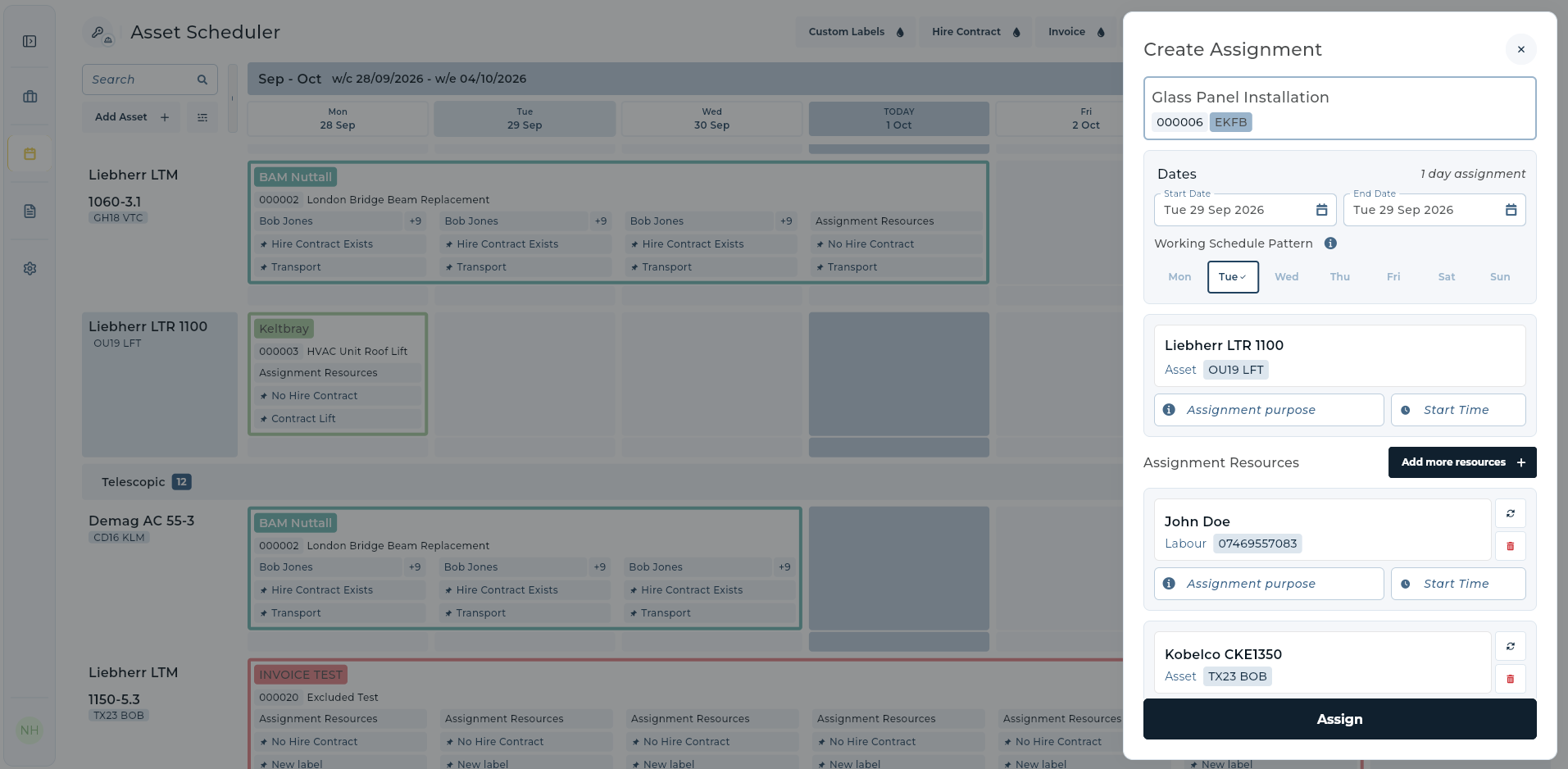
Use the same contract to allocate a crane and the people required for the work. Change the date and check the resulting booking. Ask how the system presents occupied days and how your authorised team handles an intentional additional booking. A warning that everyone learns to dismiss is different from a workflow that makes the existing commitments understandable.
In UpRate, Resource Manager provides asset and labour assignments and timesheets. The full Create Assignment form supports adding more resources to the assignment. The linked guide explains the current save and conflict-review actions. Test that process with your own team; the software does not decide whether a crane or operator is technically suitable for a lift.
Follow The Paperwork Into Accounts
Next, ask for the timesheet belonging to the chosen worker, contract and week. Introduce a missing sheet and a file saved against the wrong job. Check how the office finds the gap and corrects the record. Keep the demonstration focused on the people who do this work, including colleagues covering for the usual administrator.
If invoicing matters to your business, continue to the charge items and invoice record. Compare the agreed hire with the recorded work before preparing the bill. Request a demonstration of any accounting integration you require rather than inferring it from a logo. UpRate offers Invoice Manager separately from Resource Manager, so choose the composition that matches your workflow.
Separate Administration From Lift Planning
A booking system is one part of running a crane business. Ask explicitly whether the product covers engineering, permits or technical approval, and obtain evidence for any claimed capability. Do not treat a saved assignment as approval to carry out a lift. In Great Britain, HSE guidance sets out the need for competent planning and appropriate supervision; those responsibilities remain outside this software comparison.
Use a written scorecard after each demonstration. Record what your staff actually completed, what required help, which functions were unavailable, and the quoted costs at your expected capacity. Include training, support, migration and exit arrangements in your commercial questions. These are questions for the supplier, not capabilities this article promises on UpRate’s behalf.
- Find the right customer and contract without another spreadsheet.
- Save an allocation and inspect its resulting dates and resources.
- Recover from a booking amendment or incorrect file.
- Trace recorded work to the charges accounts will review.
- Compare the complete subscription and the work needed to adopt it.
Try Your Own Hire Desk Workflow.
Explore UpRate customer records, contracts, scheduling and timesheets, then choose the modules your crane hire firm needs.
Sign up for FREE Compare modules